> For the complete documentation index, see [llms.txt](https://bhpaydocs.casheer.com/llms.txt). Markdown versions of documentation pages are available by appending `.md` to page URLs; this page is available as [Markdown](https://bhpaydocs.casheer.com/modules-setup-guides/woocommerce.md).
# WooCommerce
Integrating your WooCommerce store with Casheer Pay services allows you to accept payments on your WooCommerce store with simple installation. You can accept payments via Debit & Credit Card, & ATM Cards. The plugin offers seamless integration, allowing the customer to pay on your website with a high secure PCI compliance hosted environment and work across all browsers and ensures compatibility with the below versions of WooCommerce
### **Compatibilities and Dependencies**
* WordPress v6.9 (or) higher
* WooCommerce v10.4.3 (or) higher
{% hint style="warning" %}
Note: The plugin has been tested up to WooCommerce v10.4.3.
{% endhint %}
### Installation
There are two methods to install the Casheer Pay WooCommerce plugin
1. Install via WordPress plugin Installer
2. Install Plugins Manually through FTP
{% hint style="danger" %}
Caution: Always keep backup of your existing WooCommerce installation including Mysql Database, before installing a new module.
{% endhint %}
### Method 1: Install via WordPress plugin Installer
1. Log in to WordPress Admin panel
2. Go to Add a new plugin.
3. Click on the upload plugin.
4. Choose the downloaded zip "casheer.zip" ([Download Plugin](https://checkout.oneglobal.com/developers/)) and click Install Now.

### Method 2: Install Plugins Manually through FTP
1\. Unzip and copy ‘**casheerpay**’ folder from downloaded **casheerpay.zip** file and upload to your`/wp-content/plugins` folder.

### **Plugin Activation**
1. Login to WP admin.
2. Go to Plugin
3. Choose Casheer Pay and Activate Plugin.

**Configure Keys:**
Step 1: Go to Plugin Setting
Step 2: Tick to enable the module and configure your keys & credentials.

#### Add & Configure Payment Method:
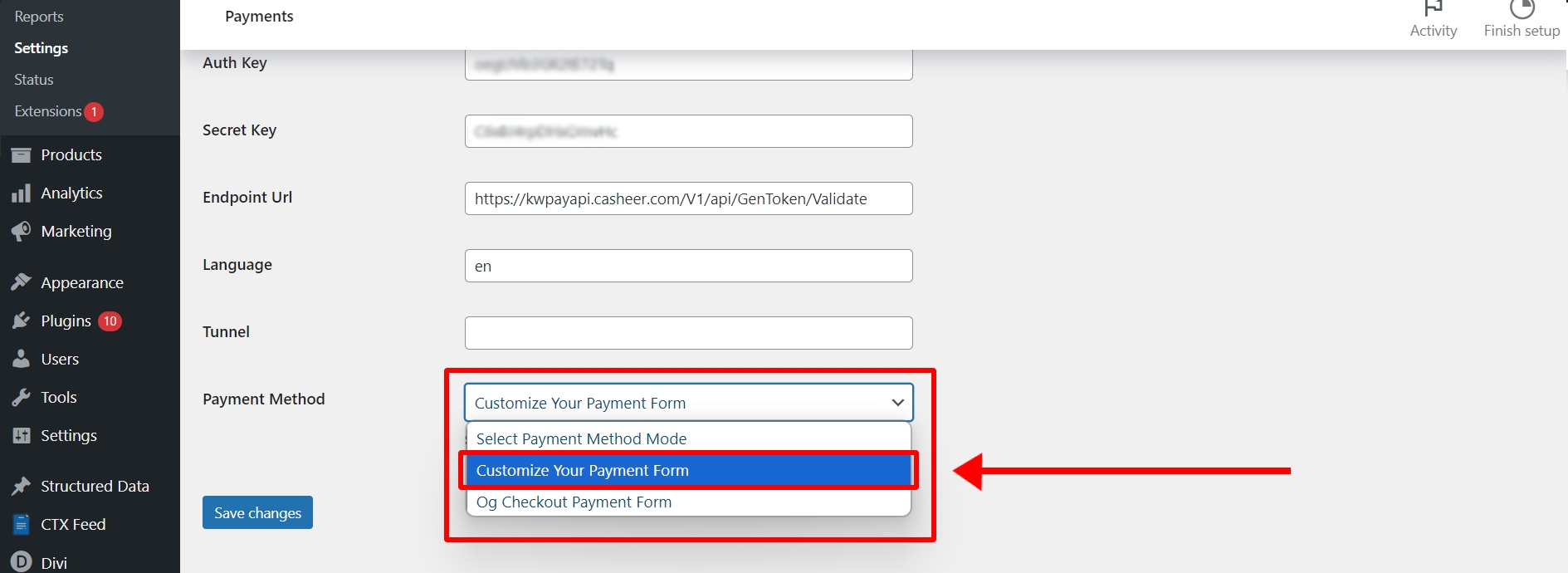
Step 1: Select the “customize your payment form” option from the payment method dropdown.
Step 2: Click on the “add new payment methods”.
Step 3: Add payment methods, Channel code and Currency code
{% hint style="warning" %}
Note: Log in to the portal and go to --> Configurations--> Payment Channels to obtain payment channel details.
{% endhint %}
#### Frontend Output:
Method 1: Using payment method as "Customize Your Payment Form"
Method 2: Using payment method as "Casheer Payment Form"
### Support
If you have any questions that are beyond the scope of this help file, please feel free email us at