> For the complete documentation index, see [llms.txt](https://bhpaydocs.casheer.com/llms.txt). Markdown versions of documentation pages are available by appending `.md` to page URLs; this page is available as [Markdown](https://bhpaydocs.casheer.com/modules-setup-guides/magento-2.md).
# Magento 2
Integrating your Magento2 store with Casheer Pay services allows you to accept payments on your Magento2 store with simple installation. You can accept payments via Debit & Credit Card, & ATM Cards. The plugin offers seamless integration, allowing the customer to pay on your website with a high secure PCI compliance hosted environment and work across all browsers and ensures compatibility with the below versions of Magento2.
### **Compatibilities and Dependencies**
* Compatibility with Open Source Community Edition : 2.0.x, 2.1.x, 2.2.x, 2.3.x, 2.4.x.
{% hint style="warning" %}
**Note:** This module works on only 2x versions of Magento.
{% endhint %}
### Installation
{% hint style="danger" %}
**Caution:** Always keep backup of your website including databases, before installing a new module.
{% endhint %}
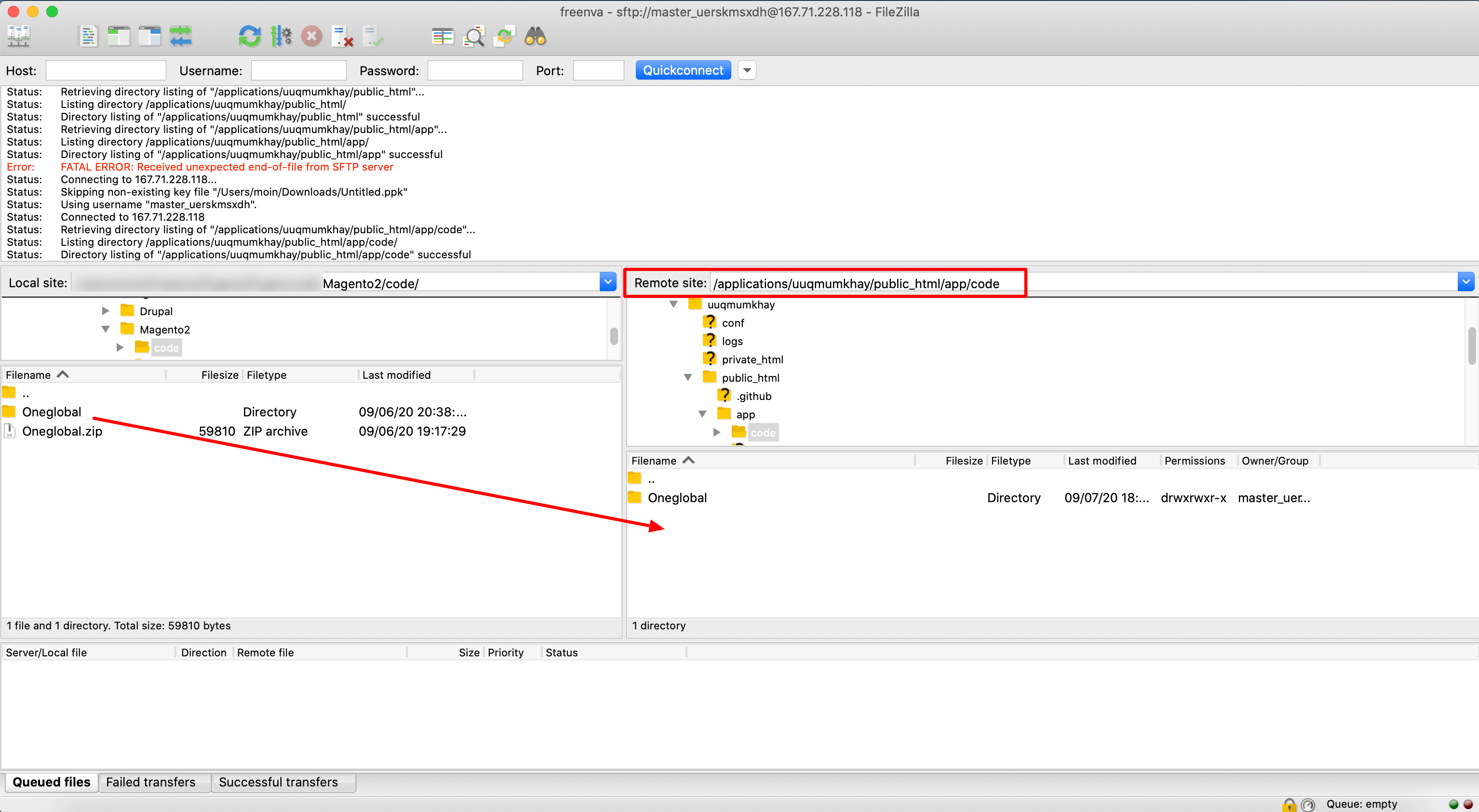
**Step 1:** Uploading files to the server
1. Extract the module zip archive.
2. Login to web server via FTP client and go to your magento directory.
3. Upload extracted file in `magento_root/app/code`
{% hint style="warning" %}
Note: If you have already a code folder in your magento directory you can skip the above point 3.
{% endhint %}
**Step 2:** Enable extension
1. Login to the server via ssh client
2. Go to magento root directory
3. Run the following commands:
{% tabs %}
{% tab title="Commands" %}
```
php bin/magento setup:upgrade
php bin/magento setup:di:compile
php bin/magento setup:static-content:deploy (If it does not work please try "php bin/magento setup:static-content:deploy -f")
php bin/magento cache:flush
```
{% endtab %}
{% tab title="Description" %}
```
To install the extension
To compile the code
To deploy static view files
To flush cache
```
{% endtab %}
{% endtabs %}
**Step 3:** Go to Stores >> Configuration >> Sales >> Payment Methods and enabled Casheer Pay
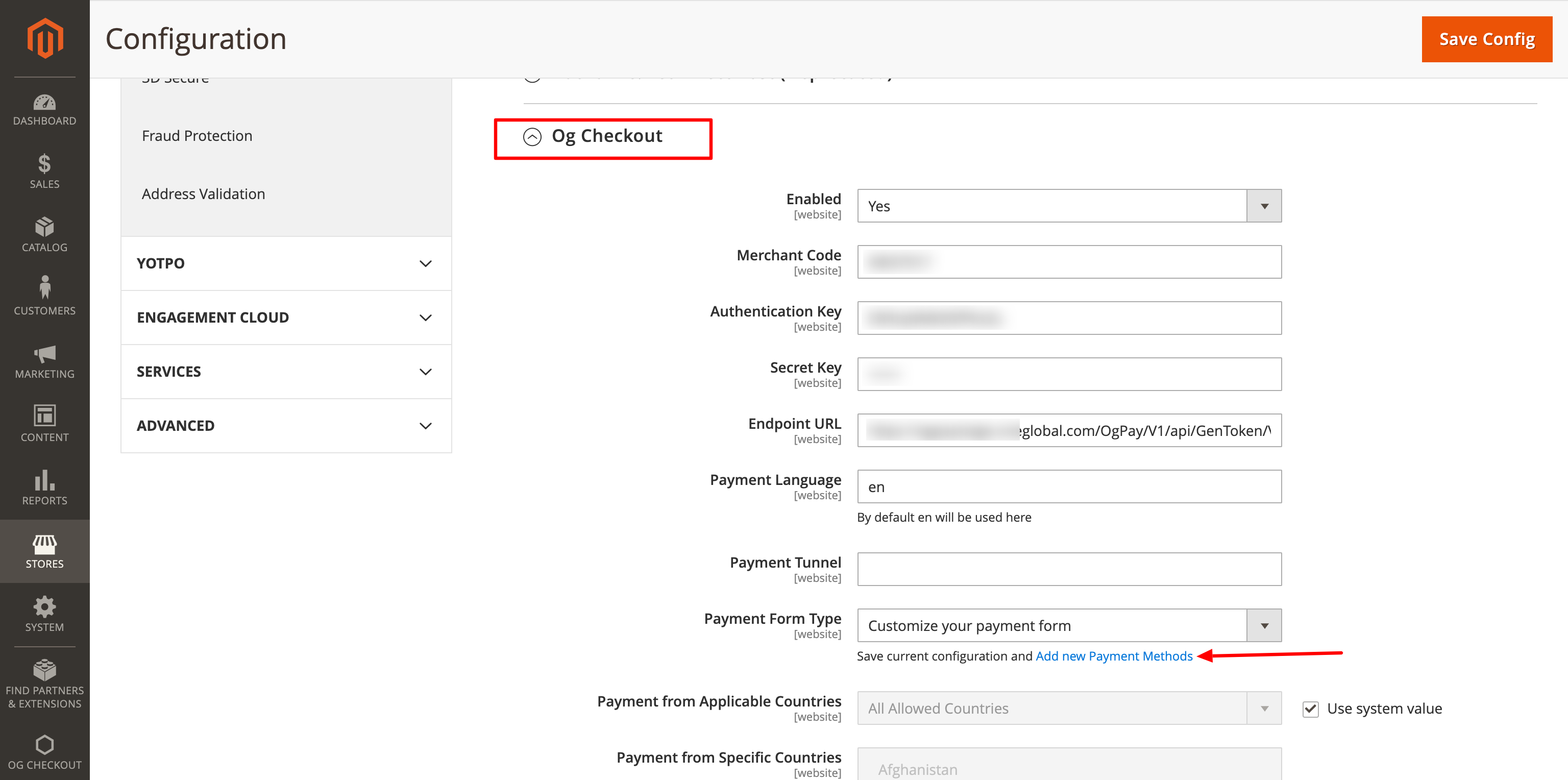
**Step 4:** Configure Your Keys & Credentials and add payment methods.
{% hint style="warning" %}
Please note: In some cases require to flush cache at the store backend by Navigate to the **Admin Panel**> **System**> **Cache Management**:
{% endhint %}
### Support
If you have any questions that are beyond the scope of this help doc, please feel free email us at